

When you sign on with Local Splash, one of the first things we need is access to your Google account. Here’s exactly how that works – it’s a quick step, and we’ll walk you through it.
One of the first quick steps to getting started with us is connecting your Google Verified ads account to our dashboard. This allows our team to jump in, optimize your ads, and start driving more calls and leads your way.
To do this, we will send an official request through Google to connect to your account. Depending on how your account was originally set up, you will receive one of two emails from Google asking for permission.
Here is a simple, step-by-step guide on what to look for and exactly what to click.
Option 1: The Quick-Click Request
Use this section if you already own and manage your own Google account.
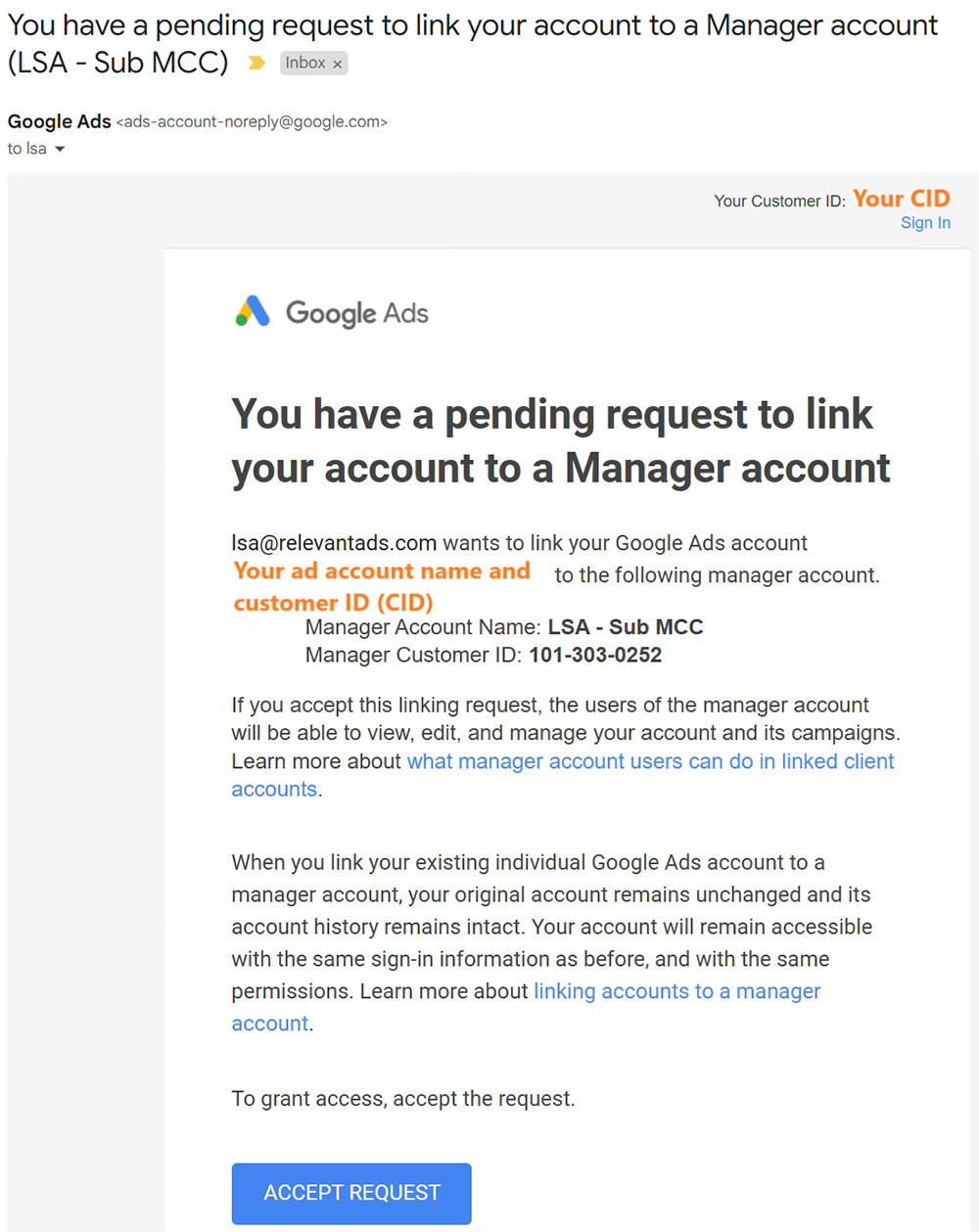
If you set up your own advertising account and have full administrative ownership of it, Google will send you an automated email asking you to accept our connection.
What the email looks like:
- Subject Line: You have a pending request to link your account to a Manager account…
- Sender: Google Ads ([email protected])
Inside the email, it will say that our account ([email protected] or [email protected]) wants to link to your account so we can help manage your ads.
What you need to do:
- Open the email and click the big blue ACCEPT REQUEST button.
- A window will open taking you to your Google Ads page.
- Click to confirm, and you’re all set!
This doesn’t affect your login or your ad history. It simply gives us the ability to manage the account alongside you.
Option 2: The Google Specialist Request
Use this section if you do not currently own your ad account and we are helping you claim it.
If your ad account was originally set up by a previous agency, a third party, or under an old corporate structure, you might not actually own the account right now. Because you don’t have the primary administrative rights to just click “Accept,” a standard request won’t work.
To fix this, Local Splash will escalate the issue directly to an actual Google Support Specialist on your behalf to manually transfer full ownership of the ad account over to you. When we open this case with Google, we will CC your email address on the ticket so you are looped into the conversation from day one.
What the actual owner sees: Once the Google Specialist reviews our escalation, they will send a security verification email directly to the current owner (such as your previous agency) to ask for permission to release the account.
- Subject Line: This will usually have a long case number at the start, followed by Account Access and your Customer ID.
- Sender: Google Support (ads-support-google.com)
The email will explain that a Google Ads Support Specialist is working to grant Admin access.
How the process works: Because Google takes security very seriously, they give the current owner a chance to release the account seamlessly.
- The current owner is supposed to open the email, click Reply, and type this exact phrase to approve the transfer:
“On behalf of my company, I agree.”
What happens if they don’t reply? Google places a strict 1 business day time limit on the current owner to follow through with that confirmation.
If they ignore the email or fail to reply within 1 business day, you’re already on the email chain. The Google Specialist will reach out to you directly with alternative ways to verify ownership, and Local Splash will be right there with you.
What Happens Next?
Once the blue button is clicked or the ownership transfer is completed by the Google Specialist, our team takes over. We will connect your freshly claimed account to the Local Splash Hub so we can start tracking your phone calls, listening to lead recordings, and fine-tuning your ads to make sure every dollar is working as hard as possible.
If you get stuck, can’t find the email, or aren’t sure which option applies to you, please don’t stress! Just give your Local Splash account manager a call, and we will happily walk you through it over the phone.